Creating Custom Paths in Zoo Tycoon 2
Step 1: Gathering The Files
For a path, you will need entities, lang and ui folders, just like many other ZT2 projects. Download the attatched file at the bottom of this tutorial to get the folder template for your path!
Navigate to your C:/Program Files/Microsoft Games/Zoo Tycoon 2/ folder, and find entities.z2f. For this tutorial, we are just going to make a path from the basic sand path, but the same principle can be applied to use the bases of other paths from other expansions too! However, as a personal preference, I prefer to use my base from the original ZT2, as the NIF files are much easier to manipulate than BFBs, and there’s marginal difference between all the paths models anyway.
Opening entities.z2f in a zip program, Click on entities > objects > paths. Now there are three different sets of files we need:
- AI files that come in an XML format
- model files that come in a NIF format
- and skin files that come in a DDS format.
First for the AI files!
AI Files
Click on the ai folder, you need to extract a path AI and a curb AI, like these two below.
Note
Ignore the _broken.xml files, I’ve never found a use for them and paths appear to be unbreakable, so why make ourselves extra coding!
I’ve picked sand.xml and curb_sand.xml as you can see:
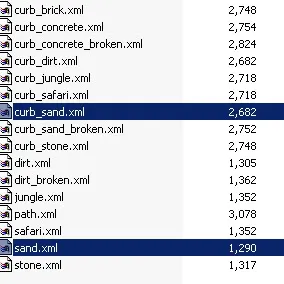
Extract these files and place them in the entities/objects/paths/ai folder in the template.
Skins and Models
Now you need the skins and models, so go back to entities > objects > paths and you should see that there is a folder for every single path, so just click that folder and drag it into your entities/objects/paths folder in yor template!
If there are any NIF files in that folder that contain the name “_broken_” you can delete these, otherwise do not touch the files just yet - now lets get coding!
Step 2: Coding the AI Files
There are only two AI files involved in path making, and they’re both relatively simple! First, pick your codename.
Tip
Keep it simple, keep it memorable, and keep it consistent! Avoiding things like underscores 😊 helps this!
First, rename both the files in the entities/objects/paths/ai folder so that they look like codename.xml and curb_codename.xml.
codename.xml
Now open up codename.xml in Notepad.
Hit Edit > Replace, and type the original name in the Find box and your codename in the replace box, and press Replace All…it really is that simple! However, just check where it says:
<BFAIEntityDataShared s_Zoopedia="zoopedia:zoopedia_codenamet:entry"/>
To make sure that the codename is in lower case.
Important
This is essential for making your Zoopedia work later!
curb_codename.xml
Now save that, and open the curb_codename.xml in Notepad.
It’s deja-vu time, because what you need to do is hit Edit > Replace, and type the original name in the Find box and your codename in the replace box, and press Replace All…it really is that simple! Now save and close that file, because it’s time to code the NIFs!
Step 3: Coding the NIF Files
Go to the entities/objects/paths/codename folder, renaming that to your codename along the way! You’ll notice there are quite a few NIF files, but don’t worry. The process is very simple!
First, rename them all so that the part that says the original name is replaced with yours, so that curb_sand_post.NIF becomes curb_codename_post.NIF.
Once that is done, you must open them all in NIF editor (such as WinHex or Nifskope, but I really recommend Nifskope!) and where it says NiSourceTexture and then a .DDS file name, change that filename so that it reflects the name you want for your curb skin, probably something like codenamecurb.DDS.
Now make sure you Save and close that NIF, repeating for every single NIF and ensuring the DDS filename is the same for each model.
When that is done - great! You’re all ready to skin!
Step 4: Skinning the Path
You should have three DDS files in this folder, a curb skin, a path skin, and an icon!
You are pretty much free to approach these how you like, the path skin is just a flat square of texture that gets repeated.
Warning
However, a caution when saving: the PATH skin only MUST be saved as RGB 8:8:8 NOT ARGB or DXT3, because otherwise strange rainbow patterns will appear instead of your lovely skin, or cause the path to have missing triangles of skin! The curb file can be saved normally however.
Rename the icon.dds and path_codename_256.dds files so that the codename is in place of the old one. Rename the curb file so that it matches what you typed in the NIF files earlier!
Once all that is done, not much further to go!
Step 5: Coding the Lang Folder
You need to code the lang folder! Luckily I already included the XML for you in the lang > 1033 folder! Make sure you rename it to your codename!
Simply open it and Edit > Replace codename, making sure to use lowercase here:
<LOC_STRING _locID="zoopedia_codename:entry">Codename</LOC_STRING>
<LOC_STRING _locID="zoopedia_codename:text">
Make sure you add your own text as well! 😉
And now finally:
Step 6: Coding the UI Folder
Go to your ui folder and navigate to zoopedia > entries, and rename the codename.xml that is there. Open it and also replace the codename, making sure that you use lowercase letters. Save and close.
Now, you really are all done this time! 😊
If you have any further problems, make sure to post in the Scenery Coding Help sections of the forums!

 Tutorial
Archived


Comments 0
Log in to join the conversation.
No comments yet.