 Tutorial
Archived
Language Coding
Learn to translate Zoo Tycoon 2 animal names and Zoopedia entries using language XML files.
- Zoo Tycoon 2
- Scripting
- Reading time
- 8 min
- Comments
- 0

Learn to resize models and individual model parts using Nifscope, XML, and Blender.
by Fauna
Scaling is changing the size of your model or changing the size of individual parts of the model. Scaling can be done in three methods, with nifscope, in the main .xml, or with an advanced modeling program such as blender or 3dsmax.
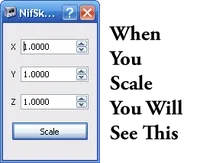
Nifscope offers the simplest way to scale. Right click on your model and select Transform > Scale Vertices. You should see the picture to the right.
Tip
One good general rule of thumb is a little goes a long way. If you were to change the scale of a Nile Moniter from 1.000 to 2.000 it will now be the size of a large Nile Crocadile. IE the model’s size will be doubled. So in scaling with nifscope, keep the incrimints small. (1.000 should become 1.250).
But remember, if you want to rescale agian the numbers will be 1.000 agian. Basicly the 1.250 is now the 1.000. It takes some practicing and may seem quite confusing for the average designer.
Also comes final point. Refer to the image to the right. In order for somthing to be scaled correctly all three number values, (X,Y,Z) must be changed, but the numbers must be the same. IE when you scale you see
X: 1.000
Y: 1.000
Z: 1.000
In order for it to be scaled correctly you must change one number, but make them all that number.
X: 1.250
Y: 1.250
Z: 1.250
To save click, Save As, and select the folder you wish.
Increasing the scale in the .xml was the first way people learned to scale.
Open the main .xml (for some animals you will need to open up both the male .xml and the remale .xml) and hit Ctrl and F. The find box will appear. Search for Scale.
The first text that will be highlighted is icon3Dscale. Ignore and hit find agian. Now you should see scale= . This is what is important.
Change the number in qutation marks (“2”) to a larger or smaller number. You can imput decimals for exact sizes. (1.55)
If it does not have the scale= text in the <BFActorComponent tag you must add it. Add
scale="2"
to the end of the <BFActorComponent tag.
Important
Remeber to still have the /> at the end. (scale="2" />)
Example:
<BFActorComponent actorfile="entities/units/animals/OtterGiantRiver/OtterGiantRiver_Adult_F.bfm" scale="2" />
When done save and close.
Blender has the easiest way to understand.
Note
(You must know a little blender to follow this tutorial)
Load your model.
Stick the nodes.
Select the model in object mode or part of the model depending on if you want to increase the head or tail size. To increase a specific part one must select the part in edit mode and scale in edit mode.
Hit the S key on your keyboard.
Drag your mouse closer or farther away from the center of the model thus making it bigger or smaller.
Export the .nif file
Tutorial
Archived
Learn to translate Zoo Tycoon 2 animal names and Zoopedia entries using language XML files.
 Tutorial
Archived
 Tutorial
Archived
by Ghost
Learn to disable animal cleaning and make animal waste invisible and odorless.
Comments 0
Log in to join the conversation.
No comments yet.