 Tutorial
Archived
- Zoo Tycoon 2
- Objects & Scenery
- Scripting
- #Dxtbmp
- Reading time
- 5 min
- Comments
- 0

Learn how to edit, import, and export alpha channels in DXTBmp to control texture transparency.
by Fauna
An alpha (channal) referes to the black and white image in a skin that tells the model what should and should not be shown. This is commonly used in foliage and in the feathers and quills of animals. In foliage the alpha is edited to the skin of the leaves or branches is shown but the backround is not.
In some cases editing an alpha can replace meshing, but this not practiced often because of its limitations.
Alphas are in .bmp format. Thus, you are now able to make a .jpeg or .png an alpha unless you convert it. (Just save the image as a .bmp)
Most .dds plug ins have an option that allows you to edit it. Such as in this picture, the alpha is circled in the program DXTBmp. To edit an alpha simple double click on it in DXTBmp.
In order for an alpha to work properly it must corrispond with the skin. (That is to say, the alpha must “match up” with the skin. See the picture for more information)
To save after editing, the Reload After Edit Button under the Image Tab. You can also hit the button that looks like a image with an up arrow
To Load a new Alpha, Click the button under the alpha image that looks like it has an arrow coming out of it. This allows you o browse for other Alphas and apply them to your skin. Say yes to the dialog box.
Likewise, there is a button showing an arrow coming into the folder. This allows you to save your alpha.
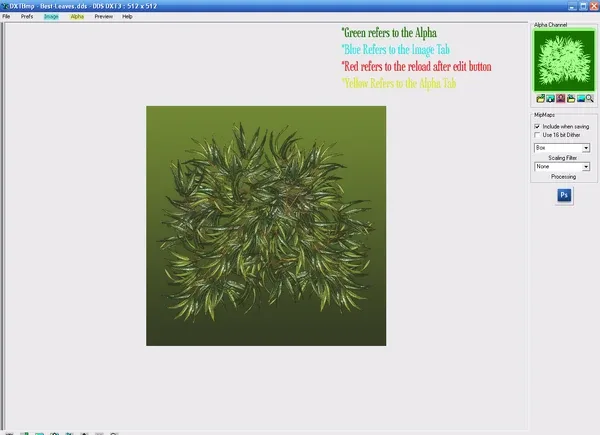
DXTBmp program picture. The Black and White image is the alpha. Note how the black and white image corresponds with what should be show on the .dds.
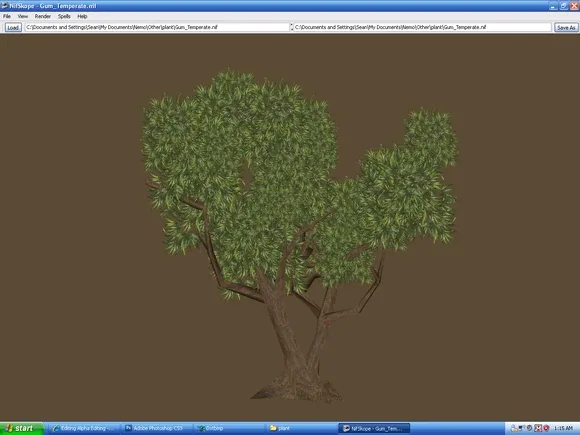
This is a picture of a working alpha on it’s .nif.
Tutorial
Archived
 Tutorial
Archived
I may aswell share it. It includes the locations for the zoopedia and for the xml files.
 Tutorial
Archived
Comments 0
Log in to join the conversation.
No comments yet.